Armor stands are one of those Minecraft items that seem simple at first, just a place to show off your diamond chestplate, right? But dig a little deeper and you’ll find they’re incredibly versatile tools for builders, decorators, and command block wizards alike. Whether you’re displaying your hard-earned enchanted gear, creating custom NPCs for an adventure map, or building intricate furniture designs, armor stands are essential to know.
This guide covers everything from the basic crafting recipe to advanced customization techniques using commands. We’ll break down the differences between Java and Bedrock editions, explore creative uses beyond simple armor display, and troubleshoot common issues. By the end, you’ll have the knowledge to turn these simple wooden frames into functional art pieces in your Minecraft world.
Table of Contents
ToggleKey Takeaways
- The minecraft armor stand recipe requires only 6 sticks and 1 smooth stone slab, but many players mistake regular stone slabs for the required smooth variant, causing crafting failures.
- Armor stands display equipment across six slots (helmet, chestplate, leggings, boots, and both hands) in 3D, making them superior to item frames for showcasing your best gear or creating lifelike statues.
- Advanced customization through NBT commands in Java Edition allows you to pose armor stands, add arms, toggle invisibility, and remove gravity, enabling creative uses far beyond simple armor display.
- Invisible armor stands combined with posed equipment create floating weapons, custom NPCs, and decorative furniture that rivals detailed interior designs in vanilla Minecraft.
- Java Edition offers significantly more customization options than Bedrock Edition, including full NBT tag support and manual rotation after placement, while Bedrock builds are limited to placement-direction rotation only.
- Common mistakes include using wrong slab types during crafting and forgetting that armor stands are vulnerable entities that can be destroyed by lava, fire, cacti, and explosions if not protected.
What Is an Armor Stand in Minecraft?
An armor stand is a utility block in Minecraft that allows players to display armor pieces, mob heads, carved pumpkins, and even elytra. Introduced in the 1.8 update (The Bountiful Update) back in 2014, armor stands have become staples in storage rooms, trophy halls, and creative builds.
At its core, an armor stand is a wooden entity that occupies one block of space and can hold up to six equipment slots: helmet, chestplate, leggings, boots, and both hands (mainhand and offhand). Unlike item frames, armor stands display equipment in three dimensions, making them perfect for showcasing your best gear or creating lifelike statues.
In Survival mode, armor stands serve practical purposes, organizing armor sets by enchantment type, displaying rare finds, or marking specific areas. In Creative mode, their true potential emerges through command-based customization, allowing builders to create poses, remove visibility, add arms, and manipulate their properties in ways that transform them into decorative elements far beyond their intended purpose.
How to Craft an Armor Stand: Recipe and Materials
Materials You Need
Crafting an armor stand requires only two materials, both relatively easy to obtain:
- 6 Sticks: Obtained by placing two wooden planks vertically in a crafting grid. Any wood type works, oak, birch, spruce, jungle, acacia, dark oak, mangrove, cherry, or bamboo (as bamboo planks).
- 1 Smooth Stone Slab: This is the tricky part. You need smooth stone, not regular stone or cobblestone. First, smelt cobblestone in a furnace to get regular stone. Then smelt that stone again to get smooth stone. Finally, craft smooth stone slabs by placing three smooth stone blocks horizontally in a crafting grid, yielding six slabs.
Many players overlook the smooth stone requirement and try using regular stone slabs or cobblestone slabs, which won’t work. The recipe specifically requires the smooth variant.
Step-by-Step Crafting Instructions
Once you have your materials ready, follow this pattern in a crafting table:
- Top row: Place one stick in the left slot, one stick in the middle slot, and one stick in the right slot.
- Middle row: Leave the left slot empty, place one stick in the middle slot, and leave the right slot empty.
- Bottom row: Place one stick in the left slot, one smooth stone slab in the middle slot, and one stick in the right slot.
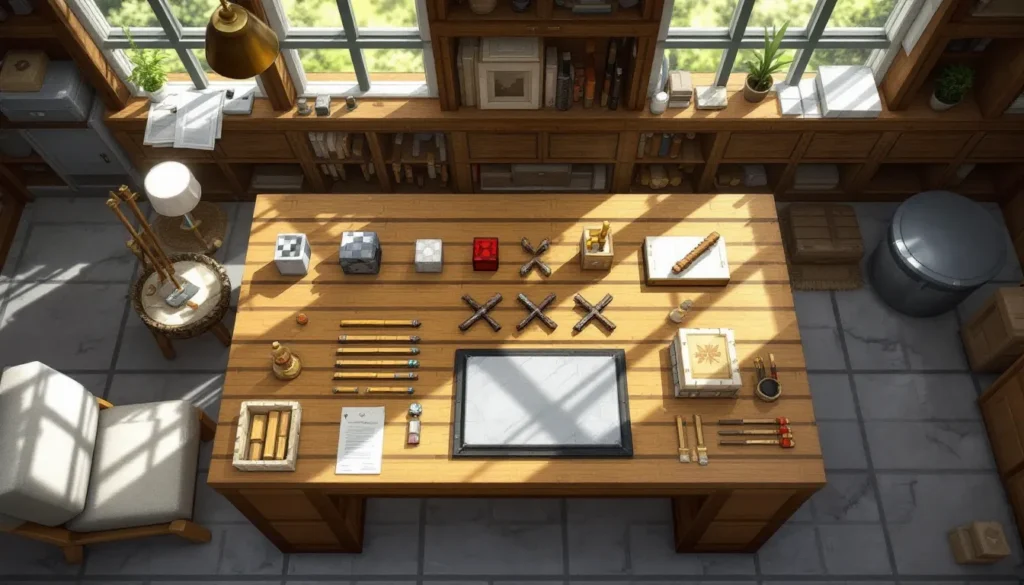
The pattern forms a stick figure shape with a smooth stone slab as the base. This yields one armor stand per craft. Since the recipe only produces one at a time and requires somewhat resource-intensive materials (particularly the smooth stone slab), it’s worth gathering materials in bulk if you’re planning a large build or storage system.
Armor stands can also be found naturally in taiga village armorer houses, where they spawn as part of the structure. Breaking these with any tool or by hand will drop the armor stand as an item.
How to Use Armor Stands in Minecraft
Equipping Armor and Items
Equipping an armor stand is straightforward but varies slightly between editions. In Java Edition, right-click (or use your interact key) while holding an armor piece, and it will automatically equip to the appropriate slot. If you right-click with an empty hand, you’ll swap the armor piece from that slot into your inventory.
The equipment slots work hierarchically:
- Helmets, mob heads, and carved pumpkins go in the head slot
- Chestplates and elytra go in the chest slot
- Leggings occupy the leg slot
- Boots fill the foot slot
- Tools, weapons, and items go in the hand slots (mainhand by default)
In Bedrock Edition, the interaction is slightly different. Tapping the armor stand opens an equipment interface showing all available slots, similar to your own inventory screen. You can then drag and drop items into the appropriate slots, making it more intuitive for mobile and console players.
One useful trick: armor stands will display enchantment glints on enchanted armor, letting you visually distinguish between regular and enchanted gear sets at a glance. This makes them excellent for organizing different armor loadouts, one for mining (with efficiency and fortune), one for combat (with protection and thorns), and one for exploration (with feather falling and depth strider).
Positioning and Placing Armor Stands
Armor stands can be placed on any solid block surface. They occupy one block of space and have a small hitbox, though they won’t prevent mob spawning in that block. When placing multiple armor stands, you can create formations, lines, or grouped displays.
In Java Edition, armor stands have distinct rotation, they face the direction you’re looking when placed, allowing for precise positioning. They can also be rotated after placement by right-clicking while sneaking, which rotates them in 22.5-degree increments (16 total positions).
Bedrock Edition handles rotation differently. Armor stands placed in Bedrock don’t have the same manual rotation mechanic, and many advanced customization techniques available in Java require alternative approaches or aren’t possible at all.
Armor stands are entities, not blocks, which means:
- They can be pushed by pistons
- They’ll float if the block beneath them is removed
- They can be destroyed by lava, fire, and cacti
- They’ll drop as items when destroyed (along with any equipped gear)
- They can be transported in minecarts and boats
Advanced Armor Stand Customization Techniques
Using Commands to Pose Armor Stands
This is where armor stands transform from simple display racks into versatile building tools. In Java Edition, the /data and /entitydata commands (depending on your version) allow you to manipulate armor stand NBT data, controlling every aspect of their appearance and pose.
The most common customization is posing. Each body part has rotation values stored as NBT data:
/data merge entity @e[type=armor_stand,limit=1,sort=nearest] {Pose:{Head:[10f,0f,0f],Body:[0f,10f,0f],LeftArm:[-90f,0f,0f],RightArm:[-90f,0f,0f],LeftLeg:[0f,0f,0f],RightLeg:[0f,0f,0f]}}
Each set of three numbers represents rotation on the X, Y, and Z axes in degrees. Experimenting with these values lets you create sitting poses, waving gestures, combat stances, or any position imaginable. Several online armor stand pose generators exist that provide visual interfaces for creating these commands without manual NBT editing.
Other useful pose-related tags:
NoGravity:1b– Makes the armor stand float in placeShowArms:1b– Displays arms (see next section)Small:1b– Creates a smaller armor stand (roughly half size)NoBasePlate:1b– Removes the stone base plate
Making Armor Stands Invisible
Invisible armor stands are game-changers for custom builds. By setting the Invisible:1b tag, the armor stand body disappears while equipped items remain visible, floating in space.
/data merge entity @e[type=armor_stand,limit=1,sort=nearest] {Invisible:1b}
This technique enables countless creative applications:
- Floating weapons or tools as decorative elements
- Custom mob heads that appear to float
- Invisible item holders for adventure map mechanics
- Simulated particle effects using small invisible stands with items
Combine invisibility with NoGravity and positioning commands, and you can place items at any height or angle. Map makers frequently use invisible armor stands to create custom NPCs, quest markers, or environmental storytelling elements.
Adding Arms to Armor Stands
By default, armor stands don’t have visible arms, just the body, head, and legs. This was a deliberate design choice to make them look less human, but it limits their versatility for creating statues or posed figures.
The ShowArms:1b tag reveals the arms:
/data merge entity @e[type=armor_stand,limit=1,sort=nearest] {ShowArms:1b}
With arms visible, armor stands can hold items in both hands, creating much more dynamic poses. A warrior statue can hold a sword in one hand and a shield in the other. A farmer can hold a hoe. A guard can hold a crossbow.
Arms can be individually posed using the LeftArm and RightArm rotation values mentioned earlier. Combined with the ability to equip items in both hands (using /item replace entity commands), you can create incredibly detailed character models.
Some builders create entire scenes using armed, posed armor stands, from medieval battle formations to modern office environments. The level of detail achievable through command-based customization rivals many decorative mods available on modding platforms.
Creative Uses for Armor Stands Beyond Displaying Armor
Building Decorative Statues and Displays
Armor stands excel at creating lifelike statues and displays when used creatively. By combining different armor pieces, mob heads, and dyed leather armor, builders can craft characters representing various professions, historical figures, or fantasy races.
Some popular statue builds:
- Guards and soldiers: Chain or iron armor with swords and shields, positioned at castle entrances or city gates
- Shopkeepers: Leather tunics (dyed appropriate colors) holding relevant items, placed in market stalls
- Historical figures: Combine specific armor sets with player heads (obtained through commands or player skull items) to recreate famous characters
- Sports figures: Use colored leather armor to create team uniforms, posed with relevant items
Small armor stands (created with the Small:1b tag) are particularly useful for creating child-sized statues or fantasy creatures like gnomes and fairies. The size difference adds depth and variety to builds.
Creating Custom Mobs and NPCs
Adventure map creators and server builders use armor stands extensively to simulate NPCs and custom mobs. While Minecraft has villagers and other passive mobs, armor stands offer complete visual control.
Techniques include:
- Invisible stands with floating heads: Position a mob head or player skull at the appropriate height for dialogue systems
- Animated sequences: Use command blocks to teleport armor stands through positions, creating walking animations or scripted events
- Custom boss mobs: Large armor stands with specific armor sets, combined with area effect clouds and particle effects for visual impact
- Quest givers: Stationary armor stands with items held overhead (rotated using pose commands) to indicate quest availability
Many popular Minecraft servers feature custom NPCs that are actually armor stands manipulated through plugins and commands. Players interact with them through right-click detection systems tied to command blocks or datapacks.
Designing Furniture and Interior Decorations
This is where armor stands truly shine for builders. Their small hitbox, customizable size, and ability to hold items make them perfect for creating detailed furniture.
Common furniture builds using armor stands:
- Chairs and benches: Small armor stands with slabs or stairs, posed in sitting positions
- Tables: Invisible armor stands holding banners or carpets to simulate tablecloths
- Lamps and light fixtures: Armor stands holding end rods, torches, or glowstone items
- Coat racks: Armor stands with displayed helmets or chestplates in entryways
- Mannequins: Full-size armor stands in clothing stores or fashion districts
- Shelving displays: Invisible stands holding items at various heights to simulate shelves
- Kitchen appliances: Creative use of dyed leather armor and items to simulate microwaves, coffee makers, or other modern appliances
The key to convincing furniture is combining armor stands with other decorative blocks, trapdoors, buttons, carpets, banners, and player heads all layer together with posed armor stands to create detailed, realistic interiors that far exceed what’s possible with vanilla blocks alone.
Many building tutorials and detailed game guides showcase armor stand furniture techniques, demonstrating how professional builders achieve their detailed interiors.
Differences Between Java and Bedrock Editions
Understanding edition-specific differences is crucial for anyone working with armor stands across platforms.
Java Edition offers significantly more customization options:
- Full NBT tag support for posing, invisibility, arms, size, gravity, and base plates
- Manual rotation after placement (right-click while sneaking)
- Arms are hidden by default but can be enabled with commands
- More predictable hitbox and interaction mechanics
- Support for
/datacommands and direct NBT manipulation - Armor stands can be placed in any rotation (not limited to cardinal directions)
Bedrock Edition has more limited functionality:
- No native NBT editing through commands (NBT support is restricted)
- Different UI for equipping items (screen-based rather than direct interaction)
- Armor stands naturally spawn with arms visible in Bedrock
- Rotation is limited to placement direction only
- Many advanced customization features require add-ons or behavior packs
- Different entity ID (
minecraft:armor_standvs. Java’s naming)
The most significant limitation is Bedrock’s lack of accessible pose customization. While behavior packs and add-ons can modify armor stands, the vanilla experience doesn’t allow command-based posing like Java Edition. This means many creative building techniques popular in Java simply aren’t possible in Bedrock without additional tools.
For cross-platform builders, these differences matter. A Java Edition world with heavily customized armor stands won’t translate properly to Bedrock, the poses will reset, invisible stands may become visible, and NBT tags will be stripped. Always build with your target platform in mind, or maintain separate versions for Java and Bedrock audiences.
Some Bedrock-specific workarounds exist. Certain poses can be approximated using behavior packs, and marketplace content often includes pre-posed armor stand variants. The Bedrock community has also developed add-ons that provide armor stand editors, though these require installation outside vanilla gameplay.
Common Mistakes and Troubleshooting Tips
Using the wrong slab type: The most common crafting mistake is trying to use regular stone slabs, cobblestone slabs, or other variants instead of smooth stone slabs. Only smooth stone slabs work. If your recipe isn’t completing, double-check you’ve smelted stone twice (cobblestone → stone → smooth stone) before crafting slabs.
Armor stands disappearing or breaking: Armor stands are entities, not blocks, which makes them vulnerable to environmental hazards. They’ll be destroyed by:
- Lava and fire (they burn like wooden items)
- Cacti (contact damage)
- Falling anvils
- Explosions (creeper, TNT, etc.)
- Being in the same block as flowing water in some versions
Always place armor stands in protected areas if you’re displaying valuable gear. Consider building display cases with glass or barriers to prevent accidental destruction.
Commands not working: When using commands for customization, common issues include:
- Syntax errors: NBT tags are case-sensitive.
ShowArms:1bworks,showarms:1bdoesn’t. - Targeting problems: Use
@e[type=armor_stand,limit=1,sort=nearest]to target the closest armor stand specifically. - Version differences: Command syntax changed significantly between 1.12 and 1.13. Older
/entitydatacommands were replaced with/data merge. Make sure you’re using syntax appropriate for your version. - Permission levels: In multiplayer, you need operator permissions to use
/datacommands.
Rotation issues in Bedrock: Since Bedrock doesn’t support manual rotation after placement, you need to position yourself precisely before placing the armor stand. Break and replace if the rotation isn’t right, there’s no other vanilla option.
Items not equipping: Remember that certain items only go in specific slots. You can’t put boots in the helmet slot, for instance. Also, in Java Edition, you need to interact with the specific body part, clicking the head area with a helmet, clicking the chest with a chestplate, etc.
Armor stands falling through blocks: If you’re using NoGravity:1b and the armor stand falls through the floor, make sure you’re setting the tag immediately after placement, or teleport the armor stand slightly above the block surface before applying the tag.
NBT tags resetting: If you’ve customized an armor stand with NBT tags and they seem to reset, check if you’re in Bedrock Edition (which doesn’t persist many NBT tags), or if chunk reloading is causing issues. In some cases, using datapacks instead of direct commands provides more stable customization.
Conclusion
Armor stands have evolved far beyond their original purpose of displaying gear. From simple storage solutions in survival bases to complex decorative elements in creative builds, they’re versatile tools that every Minecraft player should understand. The basic recipe is straightforward, six sticks and a smooth stone slab, but the potential applications are limited only by your creativity and command knowledge.
Whether you’re organizing enchanted armor sets, building detailed furniture for your base, or creating custom NPCs for an adventure map, armor stands provide functionality that few other entities can match. Java Edition players have access to incredible customization depth through NBT commands, while Bedrock Edition players can still create impressive displays within the vanilla constraints.
As you experiment with poses, invisibility, and creative item combinations, you’ll discover new techniques and applications. The armor stand community continues to develop innovative uses, and what seems impossible today might be standard practice tomorrow. Start with the basics, master the recipe and equipment mechanics, then gradually explore the advanced customization techniques that transform simple wooden frames into essential building components.