Minecraft seeds are the backbone of world generation, determining everything from terrain layout to village placements and biome distribution. Whether you’re a casual player hunting for that perfect spawn or a veteran looking for specific structures, understanding how seeds work is essential. This guide covers what seeds are, how to find and use them across editions, and how to troubleshoot when things don’t match expectations. With the right seed, you can start your next adventure exactly the way you want it.
Table of Contents
ToggleKey Takeaways
- A Minecraft seed is a number or text string that acts as a blueprint for entire world generation, determining terrain, biomes, structures, and village placement.
- The same seed produces identical worlds only when using the same edition, version, and world type—Java and Bedrock seeds generate completely different results despite identical inputs.
- Find and use Minecraft seeds by searching communities like Reddit’s r/minecraftseeds or seed databases, then paste the seed into the seed field during world creation.
- You cannot change a seed mid-world; if you want different terrain, you must create a new world with your desired seed using the exact version and world type it was designed for.
- Troubleshoot seed mismatches by checking edition (Java vs. Bedrock), version (1.20 vs. 1.21), world type (Default vs. Amplified), and verifying your input for spacing and capitalization errors.
- Retrieve your current world’s seed using the /seed command in Java singleplayer chat or by navigating to Settings → World Settings in Bedrock Edition.
What Are Minecraft Seeds and How Do They Work
A Minecraft seed is a number, or text converted to a number, that acts as the blueprint for your entire world. When you launch a new world, the game’s world generator uses this seed to determine terrain, biomes, structures, and overall landscape layout. Think of it like a password: enter the same seed with the same edition, version, and world type, and you’ll get the exact same world every time.
If you leave the seed box empty, Minecraft uses your system time as the seed instead, generating a nearly unique world. This randomness is why two players creating worlds without specified seeds rarely see identical terrain. The seed controls RNG-like behavior in terrain generation, making it predictable and shareable. Any text input gets hashed into an integer, so you can use both numeric seeds and text strings like “Shadow” or “Justice”, capitalization matters though.
How to Find and Use Minecraft Seeds
Finding a good MC seed depends on where you look. Communities like r/minecraftseeds on Reddit are goldmines for sharing and discovering new worlds. YouTube content creators regularly upload video showcases of interesting seeds, and seed databases maintain curated collections organized by features like spawn biome, nearby villages, or structure proximity.
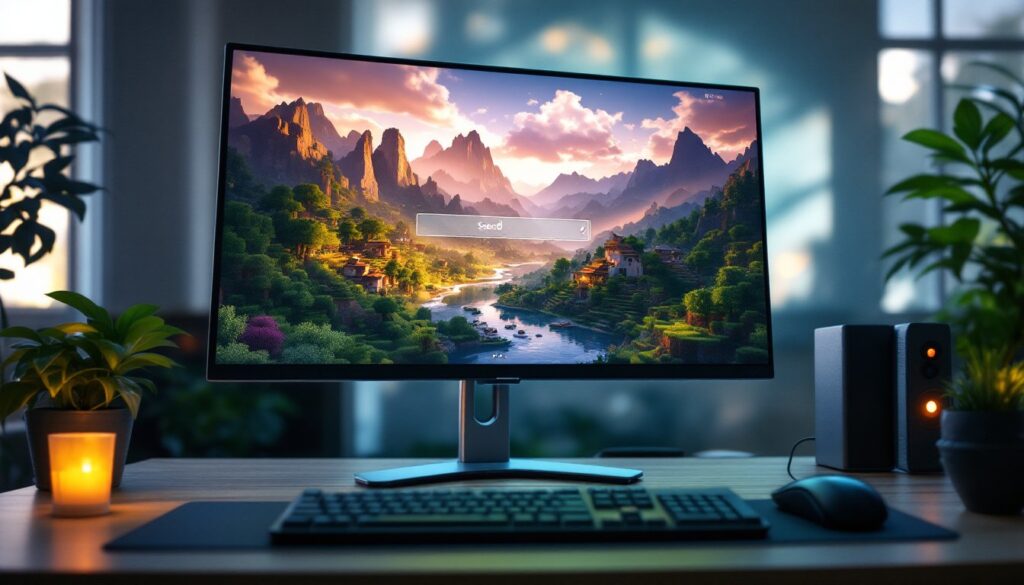
Java Edition players go to Singleplayer → Create New World → World Options, then paste the seed into the seed field before creating. Bedrock Edition follows a similar path: Play → Create New World → Advanced → Seed. On console versions like Nintendo Switch or PlayStation, you’ll find the seed field in world creation settings too.
Popular seed sites and communities make discovery straightforward. Once you find a best minecraft seed that appeals to you, the setup process takes seconds.
Determining Your Seed
Need to find the seed of an existing world? In Java singleplayer, open chat with T, type /seed, and hit Enter, the game will display the numerical seed. On servers, /seed might be disabled by the operator, restricting access to prevent cheating or exploiting specific structures.
In Bedrock, pause the game, navigate to Settings → World Settings, and you’ll see the seed field displaying your current world’s seed. Console players can locate this in world options as well. Knowing your seed is crucial if you want to recreate terrain on a different device or version.
Changing or Setting a New Seed
Here’s the hard truth: you cannot change a seed mid-world. Your terrain is locked in once you create the world. If you want different terrain, you must start fresh with a new world using your desired seed. To recreate a world from an old playthrough, grab its seed using the /seed command or world settings, then create a new world with that exact seed, making sure your version and world type match.
The Best Minecraft Seeds for Survival and Exploration
What counts as a “best” seed changes almost monthly as communities discover new gems and as patches shift world generation. Current tier lists and compilations live on gaming community forums and seed databases, where players rank seeds by criteria like biome proximity, village density, or exposed caves.
When hunting for a best mc seed tailored to your playstyle, filter by edition and version first, a 1.20 seed behaves differently in 1.21, and Java’s world generator bears little resemblance to Bedrock’s output. Then refine by goal: Do you want a peaceful valley spawn with easy resources, a challenging landscape with scattered villages, or a mega-base location with flat terrain? Player preferences vary wildly, so “best” truly depends on your intent.
Survival and exploration seeds prioritize accessible biomes, nearby structures, and interesting terrain variation. Speed-runners favor seeds with quick dungeon or stronghold access. Builders hunt for perfectly flat areas or stunning vistas. The community maintains constantly updated seed collections organized by these preferences, making it easier to find exactly what you’re after without spending hours in a mediocre spawn.
Compatibility and World Generation Considerations
Here’s where things get tricky: world generation changes between major versions. A seed from 1.19 won’t produce identical terrain in 1.21. Caves, structures, and biome boundaries shift with each update as Mojang refines the generator.
World type matters too. Default, Large Biomes, Amplified, and Superflat modes all interpret the same seed differently. An Amplified world using seed 12345 generates towering mountains and exaggerated terrain, while Default mode on the same seed produces standard landscapes. Always match the world type when recreating a seed.
Java and Bedrock editions use fundamentally different world generators. The same numeric seed in Java and Bedrock will almost always produce completely different worlds, structures, biomes, and terrain won’t align. If you’re switching editions, expect a fresh experience even with the same seed number.
When you see a viral seed on YouTube or Reddit, verify the creator’s edition and version before investing time. Modding communities and database tools sometimes preview how seeds change across versions, helping you anticipate generation shifts.
Troubleshooting Common Seed Issues
Getting a different world than advertised? Check three things immediately:
1. Edition mismatch: Java and Bedrock produce different results. If the seed was shared for Bedrock and you entered it in Java, terrain won’t match.
2. Version mismatch: A 1.20 seed in 1.21 gets re-generated differently. Always use the exact version the seed creator specified.
3. World type mismatch: Amplified, Large Biomes, and Default generate unique layouts. Confirm you’re using the right type.
Doublecheck your input too, extra spaces, missing negative signs, or capitalization errors break text seeds. “MyWorld” and “myworld” produce completely different results.
On multiplayer servers, the /seed command might be blocked by operators for security. Requesting access or using server logs (if you have permissions) are workarounds, though modifying server files to bypass restrictions violates most server rules. Stick to legitimate methods or ask the admin directly.
If a seed consistently fails, check Minecraft launcher logs for world generation errors. Corrupted seeds or version incompatibilities sometimes trigger silent failures, rebuilding the launcher cache occasionally fixes these.